Introduction
Let’s be honest. You’ve probably Googled “best free editing app” at least once, downloaded three of them, got confused by a watermark, and ended up rage quitting. We’ve all been there.
The debate around free vs paid editing apps is louder than ever in 2026. And the truth? It’s not as black-and-white as most people make it sound.
Before you swipe your card or settle for the freemium version, here’s everything you actually need to know.
Free Editing Apps vs Paid Editing Apps: Key Differences Explained Simply
At its core, the difference between free and paid editing apps comes down to four things: features, limitations, export quality, and support.
Free apps give you access to core editing tools, cutting, trimming, basic color, filters, and transitions. Paid apps go deeper. They offer things like advanced color grading, noise removal, multi-track audio, RAW file support, and AI-powered tools that genuinely save you hours.
But here’s the twist, some free tools in 2026 have blurred this line dramatically.
DaVinci Resolve, for example, is completely free. No watermark. No time limit. And it was used to color grade Dune: Part Two, Avatar: The Way of Water, and Deadpool 3, in its free version. That’s not marketing fluff. That’s a fact.
So the gap between free and paid isn’t always about quality. Sometimes it’s about workflow speed and very specific professional features.
Free vs Paid Editing Apps: Features & Tools You Actually Get
This is where it gets interesting. and where most comparison articles skip the details.
What Free Apps Typically Include:
- Basic timeline editing (cut, trim, split)
- Standard transitions and filters
- Auto-captions and subtitles (CapCut does this in 23 languages, for free)
- 4K export in some tools (DaVinci Resolve, CapCut Desktop, Kdenlive)
- Templates for quick social media content
- Basic color correction
What Paid Apps Add On Top:
- Advanced node-based color grading
- AI noise removal and motion tracking
- Multi-cam editing
- RAW file support
- Plugin and integration ecosystems
- Priority cloud storage and syncing
- Commercial-use licensing
- Team collaboration tools
- No watermarks (critical if you’re a professional)
Adobe Lightroom, for instance, remains the gold standard for non-destructive RAW editing, and it doubled down on AI in 2025 with a Generative Remove brush and Firefly-powered preset suggestions that scan your catalog and propose matching looks.
That said, many free tools offer an impressive array of features that rival paid alternatives, ensuring you don’t have to compromise on quality, especially if you’re not doing client work or commercial production.
Which One Delivers Better Quality & Performance?
Here’s the honest answer: it depends on your output.
For short-form social media content , TikToks, Instagram Reels, YouTube Shorts, free tools absolutely deliver professional-quality results. CapCut Desktop had 300 million monthly active users as of Q4 2025 (ByteDance data), which tells you something about how many creators trust it for real work.
For long-form, broadcast-grade, or cinematic projects, paid tools still hold an edge in terms of rendering performance, RAW support, and precision controls.
Professional video editing software for PC such as DaVinci Resolve and Adobe Premiere Pro provides deeper control over editing, including node-based color grading, multicam editing, RAW support, and advanced audio mixing, widely used in film production, advertising, and high-end content creation.
Performance-wise, paid apps often have optimized rendering engines and better hardware acceleration. But again, DaVinci Resolve free version handles 4K smoothly on a decent laptop. The gap is narrowing fast.
Free vs Paid Editing Apps: Is Paying Really Worth It?
Great question. Let’s break it down without the sales pitch.
Pay if:
- You’re doing client work and need watermark-free exports
- You need RAW file editing or advanced color workflows
- You edit long-form content regularly (documentaries, branded films)
- You want AI-powered features like noise removal, motion tracking, or generative tools
- Your time is money, paid tools often have faster, cleaner workflows
Stick with free if:
- You’re a beginner learning the basics
- You create content for personal social media
- You need quick edits and don’t have a budget
- You want to experiment before committing
An upfront payment can seem painful at first, but if you use software for more than a few months to a year, you often come out ahead compared to an ongoing subscription, a saving that only continues to grow.
That said, subscriptions like Adobe Creative Cloud run $54.99/month for the full suite. If you only need video editing, that’s a lot of money for features you might never use.
Free Editing Apps vs Paid Editing Apps: Limitations vs Real Advantages
Let’s be transparent about what each side actually costs you, beyond money.
Real Limitations of Free Apps:
- Watermarks : Many “free” apps (Movavi, InShot, VEED) slap a visible watermark on your exports unless you pay. Always check before downloading.
- Export restrictions : Some cap you at 720p or limit format options.
- Some software markets itself as free but exports with a visible watermark or limits you to 720p. Others are genuinely free forever with full export quality.
- Ads : InShot, for instance, includes unskippable ads in its free version, arguably more frustrating than the watermark itself.
- No commercial licensing :You can’t legally use some free tools for paid client work.
- Limited support : No customer service. You’re relying on YouTube tutorials and community forums.
Real Advantages of Paid Apps:
- Clean, watermark-free exports every time
- Faster rendering and professional-grade performance
- Dedicated support and regular updates
- Commercial use rights
- Deep AI integration (noise reduction, smart color match, generative tools)
- Better plugin ecosystems and third-party integrations
The truth? Free apps are genuinely powerful, but their limitations become walls the moment you try to scale or go professional.
Free vs Paid Editing Apps: Which One Is Right for Your Needs?
There’s no universal answer here and anyone who tells you otherwise is selling something.
Ask yourself these three questions:
1. What are you editing for? Personal use or fun? Free is fine. Client work, brand content, or film? You’ll likely need paid.
2. How often do you edit? Occasional edits? Free tools are enough. Daily or professional workflow? Paid tools save you real time.
3. What’s your current skill level? Free editors are perfect for beginners, allowing you to learn the fundamentals of video editing without financial risk. Once you’ve outgrown the basics, upgrading makes sense.
A practical approach: start free, upgrade when you hit a wall. That wall is your signal.
Top Free Editing Apps vs Paid Editing Apps You Should Try in 2026
Here’s a curated, fact-based list of the best options in both categories right now.
Top Free Editing Apps in 2026:
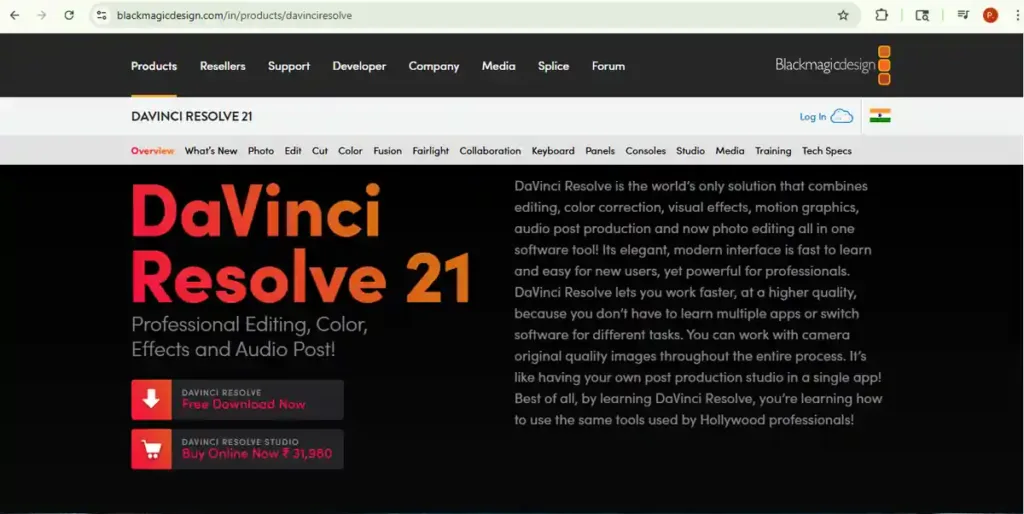
DaVinci Resolve (Free) The undisputed king of free editing. DaVinci Resolve is a version of the professional DaVinci Resolve Studio program that has almost all the features and is entirely free , with no watermarks, time limits, or other restrictions beyond a maximum export resolution of 4K UHD and 60p frame rate. If you’re serious about editing and have a learning curve to spare, this is your pick.
CapCut Desktop (Free) CapCut is a no-brainer for social media content, beginner to intermediate editors will find it intuitive and easy to learn, with an eye-popping variety of fonts, effects, stickers, and transitions, plus a superb auto-caption generator. Best for short-form creators.
Snapseed (Free – Photo Editing) Snapseed packs 29 tools, Healing, Perspective, Curves, Selective, HDR, and more, into a tidy 35MB download, with a Stacks system that works like Photoshop layers and auto-records every step so you can jump back anywhere in the chain. If you only install one free photo editor on your phone, make it this one.
If you’re a casual creator specifically looking for photo editing options, also check out our detailed guide on the Top 5 Niche Photo Editing Apps for Casual Creators . it covers some hidden gems you won’t find on most lists.

iMovie (Free – Mac/iOS) If you’re on a Mac, you don’t need to download anything , just open iMovie. Zero learning curve, solid output, great for YouTube beginners.
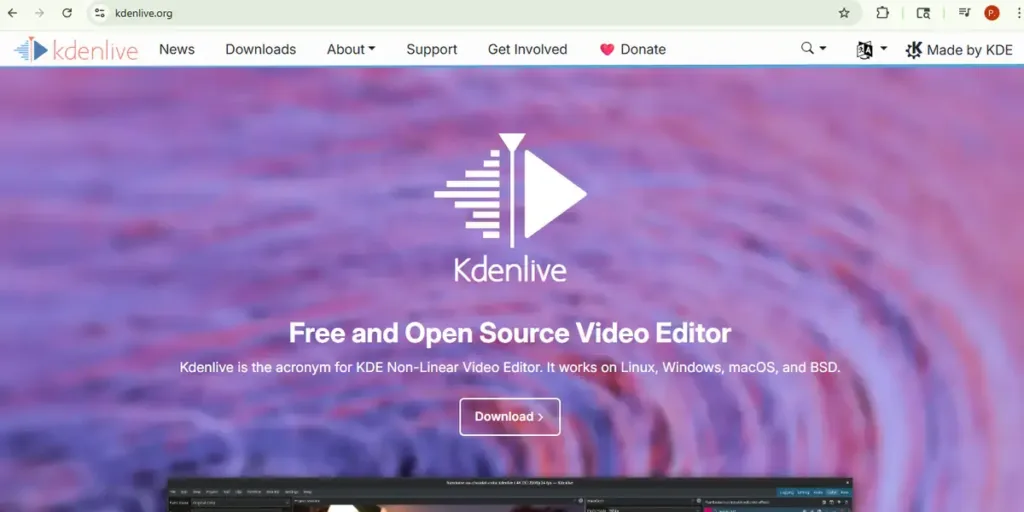
Kdenlive (Free) Kdenlive is a free, open-source editor that’s been around since 2002. It’s well-regarded in the Linux video editing community and has a feature set that competes with mid-level paid software. Great for Windows/Linux users who want more than the basics.
Top Paid Editing Apps in 2026:
Adobe Premiere Pro : Industry standard for professional video. Best for long-form content, broadcast, and teams. Subscription-based.
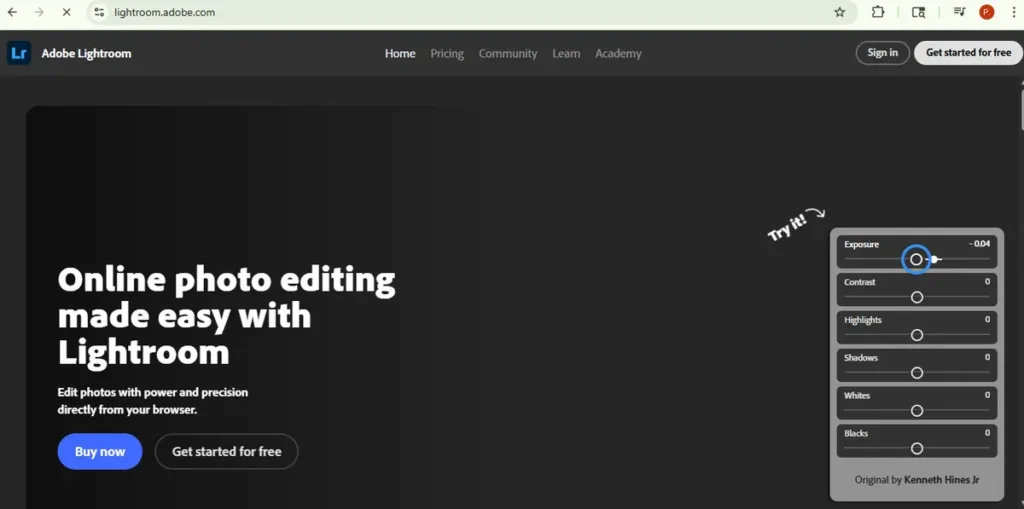
Adobe Lightroom : The go-to for photographers. All edits sync through Creative Cloud, so you can start on a phone, refine on an iPad, and finish on a 4K monitor without exporting a single file.
Final Cut Pro : Mac-only, one-time purchase ($299.99). Fast, powerful, and beloved by YouTubers and filmmakers alike.
DaVinci Resolve Studio (Paid) : For those who love DaVinci Resolve’s free version and need the extra horsepower: higher frame rates, advanced noise reduction, and collaborative tools.
Affinity Photo 2 : A one-time purchase Photoshop alternative that punches way above its price point. No subscription. Real tools.
My Experience: Why I Keep Coming Back to DaVinci Resolve
I’ll be upfront, when I first heard “professional editing software, completely free,” I rolled my eyes. Hard. Sounded like one of those deals where the free version lets you do exactly three things before hitting a paywall.
I was wrong.
I started using DaVinci Resolve’s free version after getting frustrated with watermarks on other tools. What I expected was a stripped-down demo. What I got was a full professional editing suite that didn’t ask me for a single rupee.
The first thing that genuinely surprised me was the Color page. I was working on a short documentary-style video outdoor footage, mixed lighting, inconsistent shots. In other free tools, getting the colors to look consistent across clips took forever and still looked off. In DaVinci Resolve, using the node-based color grading system, I matched all my clips in under 20 minutes. The result looked like something I had seen in professionally produced content online.
Then came the audio. The Fairlight audio engine inside DaVinci Resolve handled my background noise removal and audio leveling better than I expected from a free tool. No third-party plugins needed. No exporting to another app.
The export quality was another win. Full 4K, no watermark, no time limit, no “upgrade to unlock HD.” I exported a 12-minute edit and it rendered cleanly with zero quality loss.
Was there a learning curve? Absolutely. The interface feels like a spaceship cockpit the first time you open it. I spent two evenings on YouTube tutorials before things started to click. But once they did , there was no going back.
I’ve since used it for client videos, personal projects, and even a product walkthrough for a small brand. Every single time, the output looked polished and professional. Not once did anyone ask me “what software did you use?” in a doubtful way. They just liked the work.
If there’s one app from this entire list that delivers genuine professional results without costing you anything, it’s DaVinci Resolve. Not close. Not comparable. Just, DaVinci Resolve.
Conclusion:
Here’s the bottom line, no fluff:
Free apps win for: Beginners, casual creators, social media content, photo editing on mobile, and anyone on a budget who wants real results.
Paid apps win for: Professional workflows, client deliverables, advanced color and audio work, commercial licensing, and creators who edit daily and value their time.
The smartest move? Start with a free tool. Learn the craft. Then invest in paid software when your needs outgrow what free can offer.
In 2026, the difference between free and paid editing apps isn’t always about quality, it’s about workflow efficiency and professional-grade control at scale. For 90% of creators, free is more than enough. For the other 10%, the upgrade is absolutely worth it.
Choose based on where you are today , not where you hope to be someday.
FAQ’s
Are free editing apps good enough for professional use?
Some absolutely are. DaVinci Resolve’s free version was used on Hollywood films. That said, always check the commercial licensing terms before delivering paid client work.
Do free editing apps put watermarks on videos?
Many do, InShot, VEED, and Movavi are guilty of this. DaVinci Resolve and CapCut Desktop don’t. Always check before you start a project.
Is paying for Adobe Creative Cloud worth it in 2026?
Only if you use multiple Adobe tools regularly. For a single app, it’s expensive. One-time alternatives like Final Cut Pro or Affinity Photo are smarter for most people.
What’s the best free photo editing app for mobile in 2026?
Snapseed. It’s completely free, has 29 professional tools, and works on both Android and iOS. Nothing else comes close at zero cost.
Can I switch from a free app to a paid app without losing my work?
Sometimes yes, sometimes no. DaVinci Resolve lets you upgrade seamlessly. Others don’t. Always check compatibility before committing to a workflow.